Hardware settings for IBM i VMs
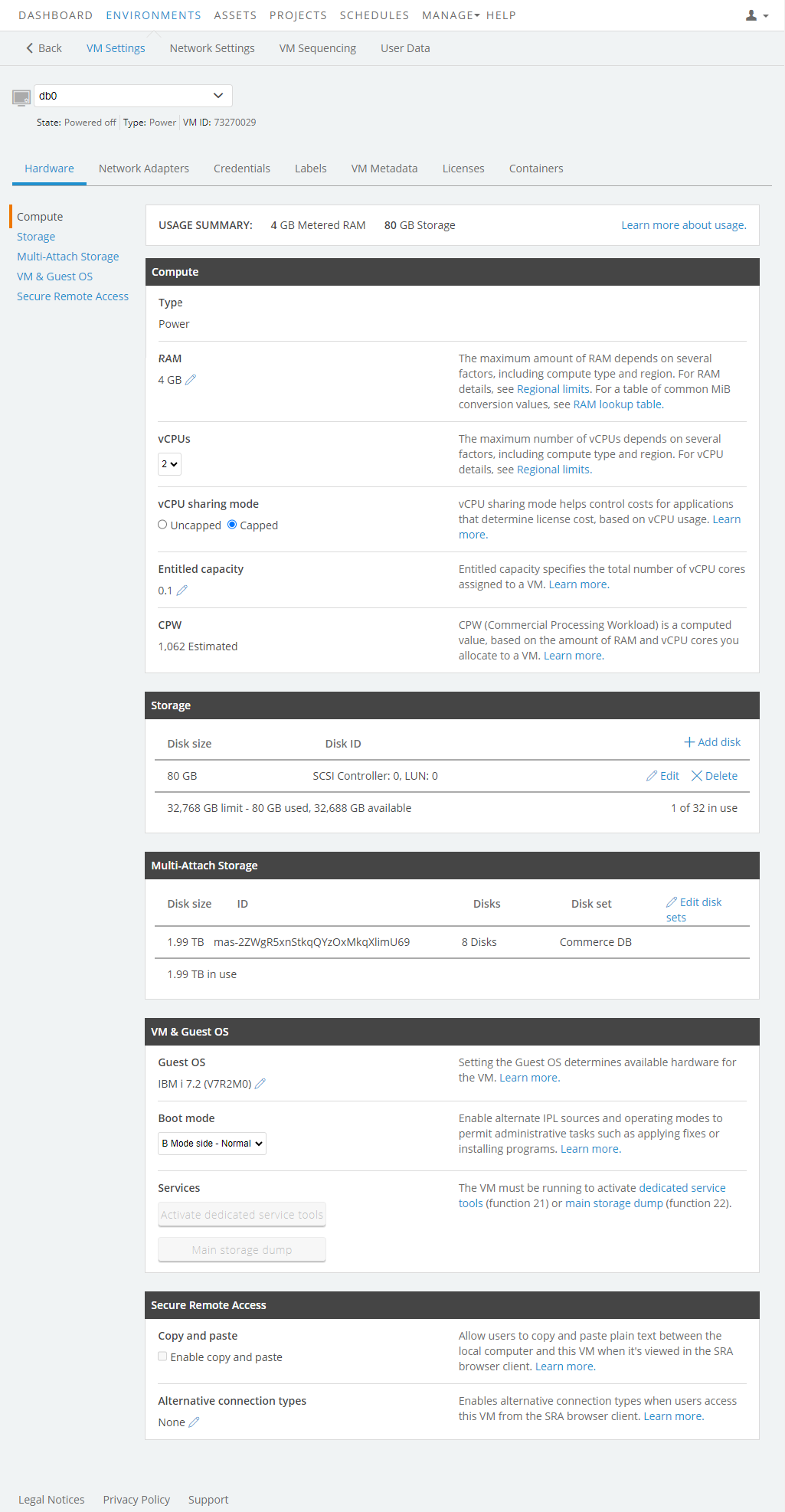
The VM Hardware settings page displays information about the current VM settings. You can also edit many of the VM settings from this page.
Notes
- Virtual machine hardware settings determine the amount of RAM and storage that the VM consumes. For example, larger VMs consume more RAM and storage space. For information about how RAM and storage are calculated, see How usage is calculated>.
- The sections that display on this page vary by Type and Guest OS settings.
Hardware options
VM Configuration
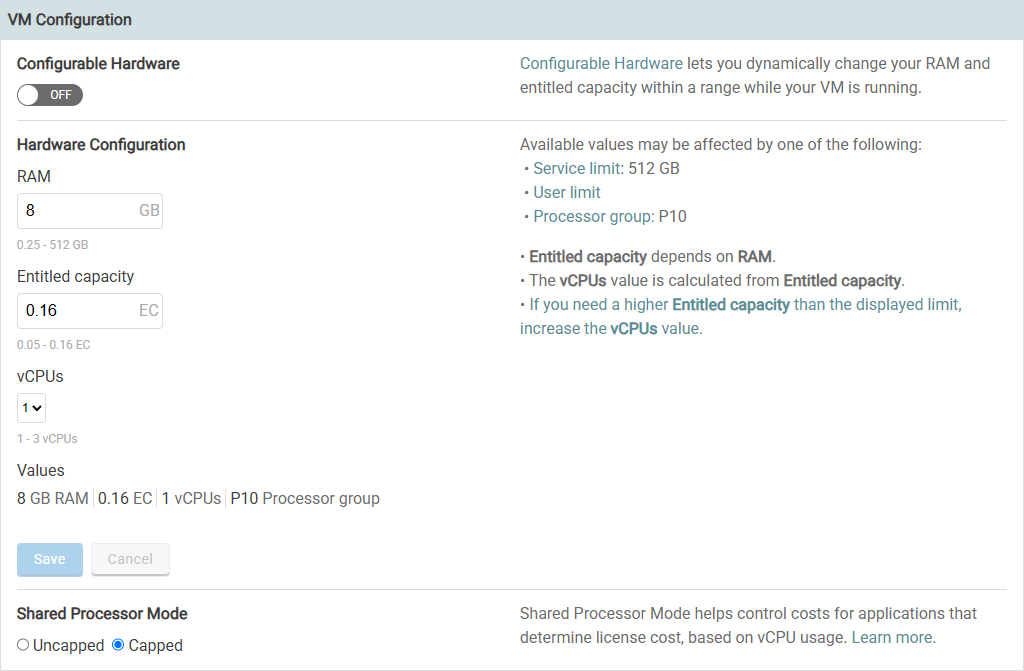
The number of CPUs a VM can have varies by region and by VM type.
In most Kyndryl Cloud Uplift regions, a VM can be configured between 256 MB and 256 GB of RAM. In some regions, up to 512 GB of RAM can be configured for a single VM. For a complete list of hardware limits by region, see Kyndryl Cloud Uplift service limits, Regional.
Notes
- Increase the amount of RAM for a Power A CPU architecture that supports IBM i, AIX, and Linux (on Power) in Kyndryl Cloud Uplift. VM to increase the CPU entitlement (approximate CPW for IBM i VMs) For details, see CPU entitlement lookup table.
- All RAM amounts are rounded up to the next gibibyte (base-2) to calculate Metered RAM for billing. For example, 1025 MB is rounded up to 2048 MB.
- The maximum values for vCPUs and Entitled capacity depend on processor Type, which can vary by region.
For more information, see Editing VM CPUs and RAM.
Storage
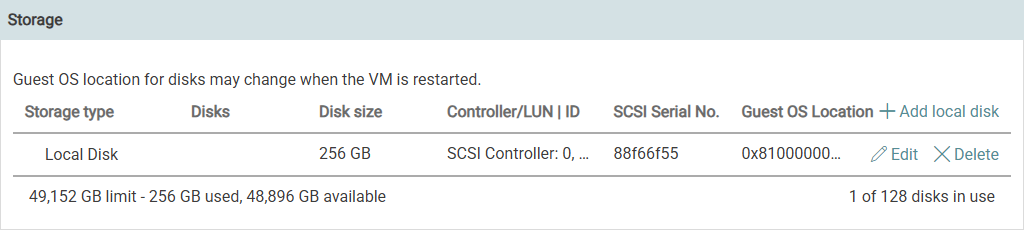
Displays the VM virtual disk storage settings. Displays the VM virtual disk storage settings.
For instructions about editing the VM virtual disks, see:
See Kyndryl Cloud Uplift service limits for supported disk configurations in each region.
Using disk information in IBM i VMs
To display the resource details for a specific disk
-
In the guest operating system, type the following command:
WRKHDWRSC TYPE(*STG) - Type 9 next to the storage controller that the disk is attached to. The Work with Storage Resources page displays.
- Type 7 next to the disk. The Display Resource Detail page for that disk displays.
For additiona instructions about editing the VM virtual disks, see:
Notes
- Disk information isn't displayed for existing running IBM i VMs until the VM is restarted.
- Kyndryl Cloud Uplift allocates storage in binary units (GB). However, storage is labeled as GB in the Kyndryl Cloud Uplift interface and API. For example, if you create a 10 GB disk for a VM, the disk has 10,737,418,240 bytes of storage within your VM (10 GB).
- 2 GB is the minimum disk size.
- See Kyndryl Cloud Uplift service limits> for supported disk configurations in each region.
Hardware and Guest OS
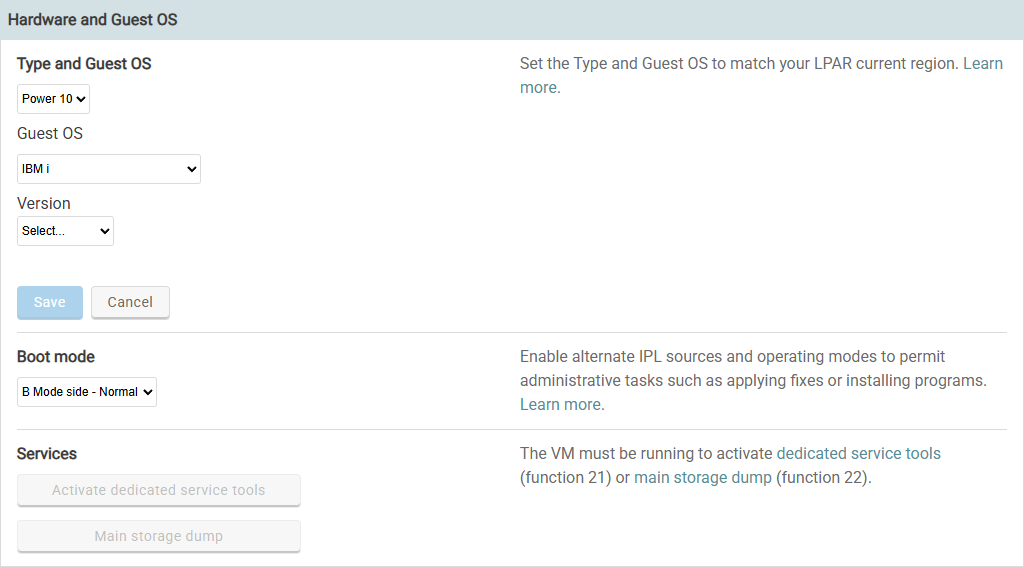
Type and Guest OS
Determines the hardware that the VM will run on and tells the underlying host which operating system the VM is running.
If Guest OS or Version is incorrect on this page, click Edit and select the currently installed Guest OS and version.
Changing these settings doesn't change the installed OS nor does it install a new OS; it helps Kyndryl Cloud Uplift use the correct hardware for the VM.
For a complete list of the operating systems and versions that Kyndryl Cloud Uplift supports, see Supported operating systems for Kyndryl Cloud Uplift VMs.
Boot mode
You can choose from the following IPL types and operating modes:
- A Mode side - Manual – IPL source A, manual mode (attended) – Permanent Licensed Internal Code
- B Mode side - Manual – IPL source B, manual mode (attended) – Temporary Licensed Internal Code
- D Mode side - Manual – IPL source D, manual mode (attended) – Alternate IPL load source
- A Mode side - Normal – IPL source A, normal mode (unattended) – Permanent Licensed Internal Code
- B Mode side - Normal – IPL source B, normal mode (unattended) – Temporary Licensed Internal Code (default)
- D Mode side - Normal – IPL source D, normal mode (unattended) – Alternate IPL load source
For details about IBM i IPL types, see IPL type.
Dedicated Service Tools
Use this feature to activate Dedicated Service Tools for IBM i VMs.
- Click Activate dedicated service tools to display the Dedicated Service Tools Sign on screen. After you sign on as QSECOFR, the Use Dedicated Service Tools menu displays.
You can activate Dedicated Service Tools only after the VM has finished starting.
Main Storage Dump
For in-depth troubleshooting of IBM i VMs, you can generate a dump of the main storage for the LPAR. When you click Start now, a confirmation dialog displays. Click Confirm and restart to restart the LPAR and generate the main storage dump.
Notes
- All of the in-use storage space of the VM will be collected in the main storage dump. Make sure the VM has enough storage capacity to hold the main storage dump output.
- The VM will be unavailable while the main storage dump is in progress. For very large VMs, the main storage dump may take several hours.
Secure Remote Access
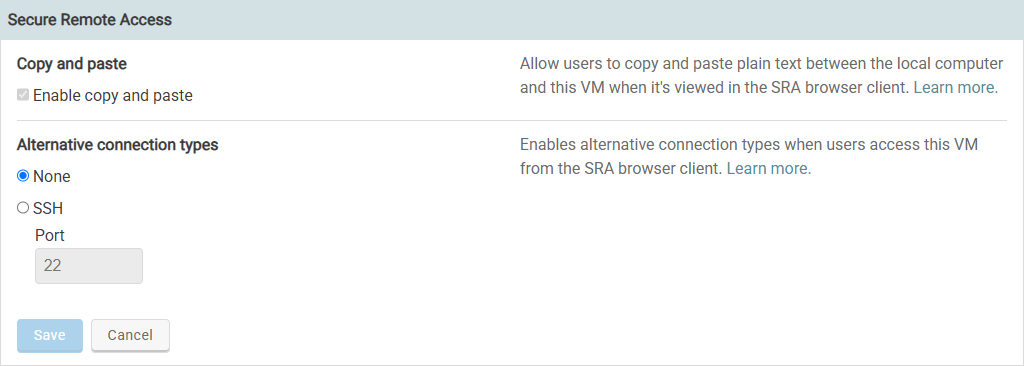
Copy and paste
Select to allow users to copy and paste from their local machines to Kyndryl Cloud Uplift VMs with the Secure Remote Access (SRA) browser client. Copy/paste for Power requires an SSH connection.
For more information, see Copy and paste text between your local computer and a VM.
Alternative connection types
Enables RDP and SSH connection types for SRA access. For configuration details, see VM SRA connection types.