Hardware settings for AIX and Linux on Power VMs
The VM Hardware settings page displays information about the current VM settings. You can also edit many of the VM settings from this page.
Notes
- Virtual machine hardware settings determine the amount of RAM and storage that the VM consumes. For example, larger VMs consume more RAM and storage space. For information about how RAM and storage are calculated, see How usage is calculated>.
- The sections that display on this page vary by Type and Guest OS settings.
Hardware options
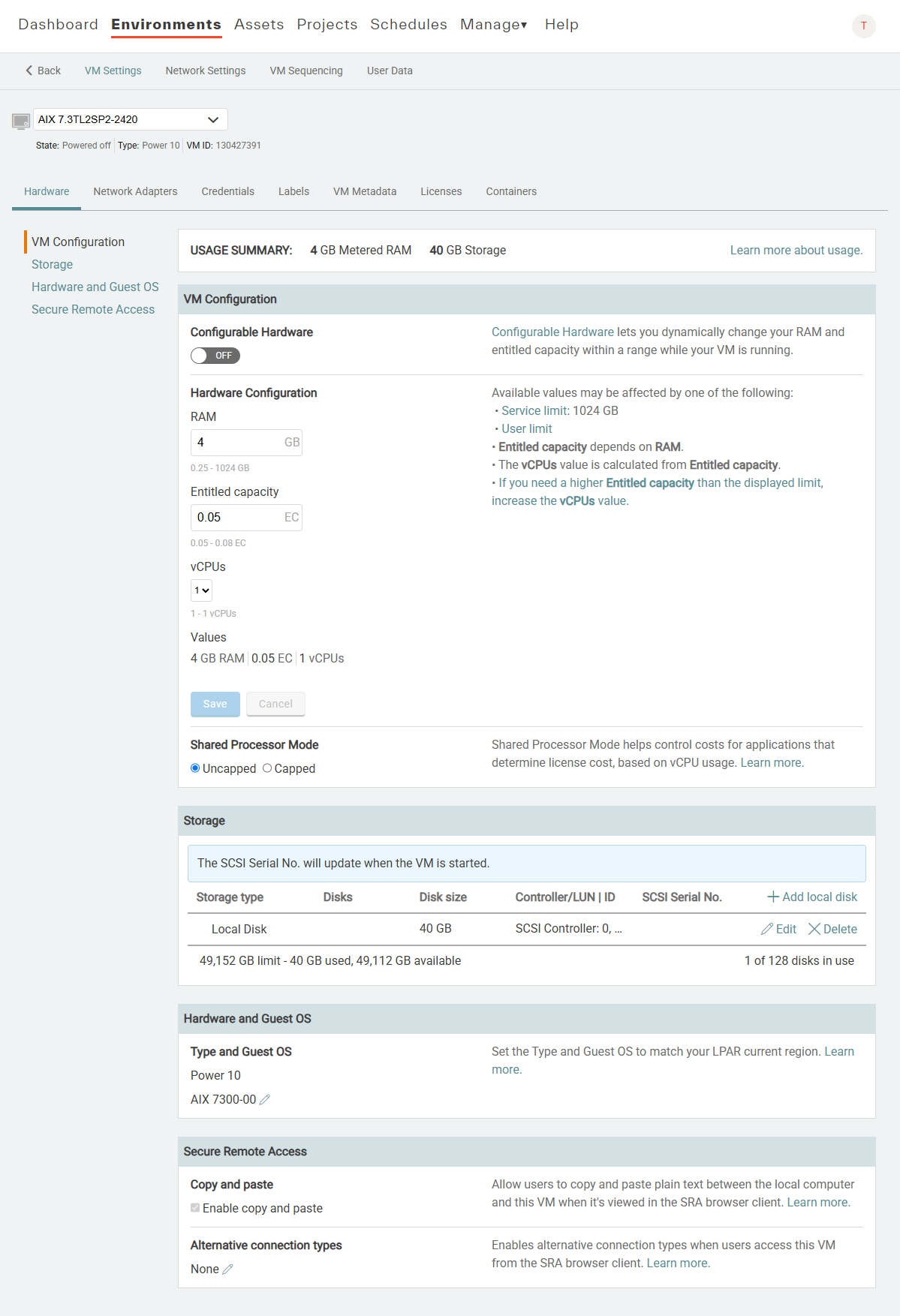
VM Configuration
The number of CPUs a VM can have varies by region and by VM type.
In most Kyndryl Cloud Uplift regions, a VM can be configured between 256 MB and 256 GB of RAM. In some regions, up to 512 GB of RAM can be configured for a single VM. For a complete list of hardware limits by region, see Kyndryl Cloud Uplift service limits, Regional.
Notes
- The minimum RAM for an AIX VM is 2 GB.
- All RAM amounts are rounded up to the next gibibyte (base-2) to calculate Metered RAM for billing. For example, 1025 MB is rounded up to 2048 MB.
For more information, see Editing VM CPUs and RAM.
Storage
Displays the VM virtual disk storage settings. See Kyndryl Cloud Uplift service limits for supported disk configurations in each region.
For instructions about editing the VM virtual disks, see:
Notes
- Kyndryl Cloud Uplift allocates storage in binary units (GB). However, storage is labeled as GB in the Kyndryl Cloud Uplift interface and API. For example, if you create a 10 GB disk for a VM, the disk has 10,737,418,240 bytes of storage within your VM (10 GB).
- 2 GB is the minimum disk size.
Using of the SCSI serial number in AIX VMs
To retrieve the hdisk information for a specific SCSI Serial No.
-
In the guest operating system, type the following command:
odmget -q “value like ‘*serial number*’” CuAt
To retrieve the SCSI Serial No. for a specific hdisk
-
In the guest operating system, type the following command:
odmget -q "name='hdisk id' and attribute='unique_id'" CuAt
Using the SCSI serial number in Linux on Power VMs
To retrieve the SCSI Serial No. for a specific hdisk
-
Depending on the guest operating system, type one of the following commands:
udevadm info --query=all --name=device name | grep SCSI_IDENT_SERIALudevadm info --query=all --name=device name | grep ID_SCSI_SERIALtail -c +4 /sys/block/device name/device/vpd_pg80 && echo
For additional instructions about editing the VM virtual disks, see:
Notes
- Kyndryl Cloud Uplift allocates storage in binary units (GB). However, storage is labeled as GB in the Kyndryl Cloud Uplift interface and API. For example, if you create a 10 GB disk for a VM, the disk has 10,737,418,240 bytes of storage within your VM (10 GB).
- 2 GB is the minimum disk size for an AIX VM.
- See Kyndryl Cloud Uplift service limits> for supported disk configurations in each region.
Hardware and Guest OS
This section tells the underlying host which operating system the VM is running and whether nested hypervisors are enabled.
If Guest OS is incorrect on this page, click Edit and select the currently installed Guest OS.
Type and Guest OS
Determines the hardware that the VM will run on and tells the underlying host which operating system the VM is running. Power A CPU architecture that supports IBM i, AIX, and Linux (on Power) in Kyndryl Cloud Uplift. VMs can use one of the following Guest OS An operating system running on a VM. This functions like an operating system running on a physical machine. :
- AIX (default)
- IBM i
- Red Hat Enterprise Linux
- SUSE Enterprise Linux Server
- Ubuntu Linux
- Other Linux
Changing this setting doesn't change the installed OS nor does it install a new OS; it helps Kyndryl Cloud Uplift use the correct hardware for the VM.<
For a complete list of the operating systems that Kyndryl Cloud Uplift supports, see Supported operating systems for Kyndryl Cloud Uplift VMs.
Secure Remote Access
Copy and paste
Select to allow users to copy and paste from their local machines to Kyndryl Cloud Uplift VMs with the Secure Remote Access (SRA) browser client. Copy/paste for Power requires an SSH connection.
For more information, see Copy and paste text between your local computer and a VM.
Alternative connection types
Enables RDP and SSH connection types for SRA access. For configuration details, see VM SRA connection types.